AR Drawing - Trace Art Studio
- 0.0
- Rating
- 10.00K
- Installs
- Free
- Price
 Analysis by App-foxy
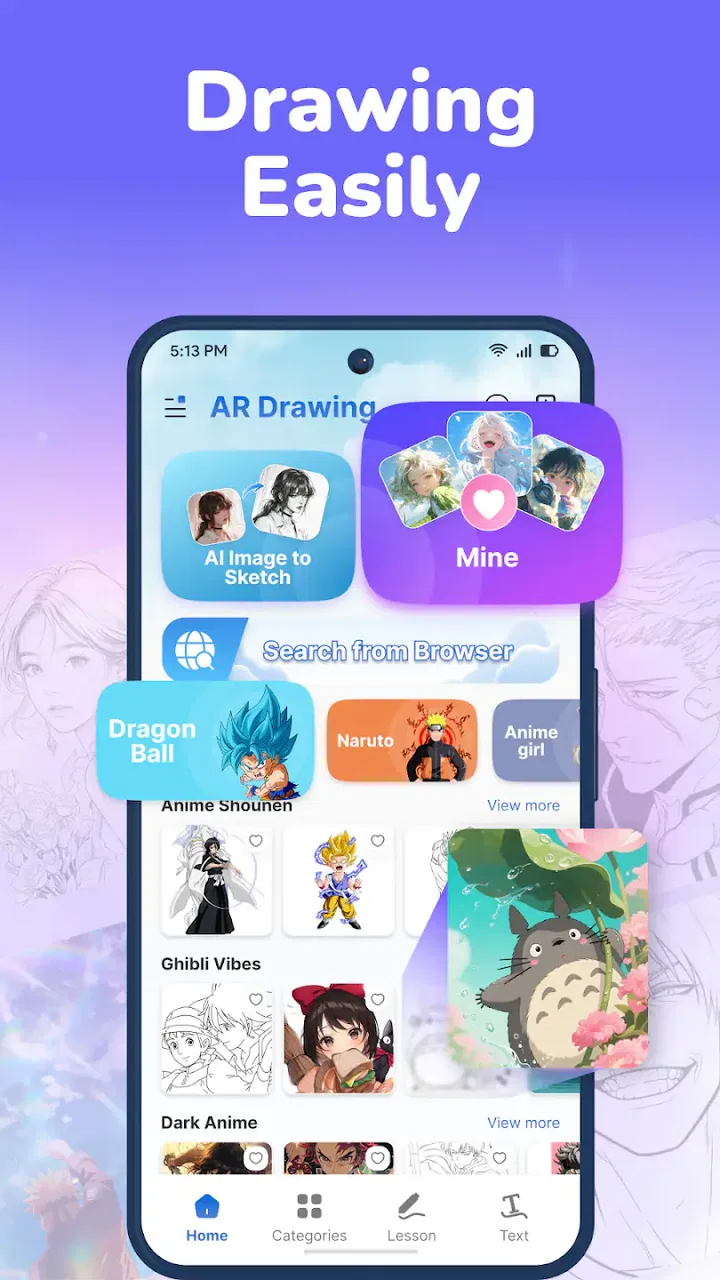
I spent time with AR Drawing - Trace Art Studio as a practical drawing aid rather than as a full digital art suite. Its main idea is simple: the phone camera shows a real surface while an image is positioned over that view, giving me a guide to follow with pencil, pen, or another physical tool. That makes it especially interesting for people who want help with proportions but still enjoy making marks on paper.
What I like about this approach is that it sits between two familiar options. A blank sketchbook gives complete freedom but no visual guide, while a normal drawing app offers layers and editing but keeps the work inside the screen. This app tries to preserve the feel of a physical drawing session while using the phone as a visual reference. In my experience, that makes it approachable for beginners, useful for practice, and more limited for anyone expecting a complete illustration workspace.
How the tracing idea works in everyday use
The first thing to understand is that the camera view is central to the experience. I place the phone so the display shows the paper or other drawing surface, then use the visible reference as a guide. The result depends heavily on positioning: if the device moves, the image and the real page no longer line up cleanly. A stable setup is therefore not a minor convenience; it is part of using the app well.
You May Also Like

 Pandora - Music & Podcasts
Pandora’s Music Is Easy to Start, but Harder to Recover
Pandora’s strength is its low-effort path from a seed to a station. Its weak spot is how much confidence it asks you to place in connection, setup, and quiet recovery.

 AccuWeather: Weather Radar
AccuWeather Review: A Quick, Clear Forecast for Everyday Decisions
For everyday plans, the best forecast is the one you can understand quickly. AccuWeather makes rain timing, radar, and local conditions easy to act on, with a few trade-offs.

 Hill Climb Racing
Why Hill Climb Racing Still Turns Crashes Into One More Run
A tiny car, a bumpy hill and one more upgrade: Hill Climb Racing keeps resurfacing because its simple chaos makes every near-miss feel personal.

 AliExpress - Shopping App
AliExpress Makes Global Shopping Feel Personal, but Shoppers Bear the Risk
AliExpress turns a global marketplace into a pocket-sized discovery engine. Its reach is useful, its shopping loop compelling, and its trade-offs easy to miss.

 Lords Mobile: Kingdom Wars
Lords Mobile Is a Kingdom-Building Routine, Not a Quick Match
A case-by-case verdict on the building, battles, device demands, and social commitments that make Lords Mobile rewarding for some players and exhausting for others.

 PDF Scanner app - TapScanner
TapScanner Makes Paperwork Easier to Capture, Check, and Share
TapScanner makes scanning with a phone feel less like a rescue operation and more like a dependable step in getting work done. Its capture tools are useful, though not flawless.
More From Our News Desk
View All News


I found the method most useful for learning shapes rather than blindly copying every line. For example, I can begin with the outer contour of a simple object, pause to check the proportions, and then add internal details. This encourages a slower process than simply pressing a button and expecting a finished drawing. The app helps my eye and hand coordinate, but it does not replace observation or practice.
A useful habit is to start with a light pencil. The camera overlay can make a reference look convincing even when the paper is slightly angled, so dark permanent lines are a poor first move. I prefer to establish the main structure, adjust the phone or paper if necessary, and only then reinforce the parts that look right. That workflow reduces the frustration of discovering that an early line was based on a shifted view.
The app belongs to the Art & Design category, but I would describe it more narrowly as an AR tracing companion. That distinction matters. It is not the same kind of tool as a layer-based painting app, a vector editor, or a professional sketching program. Its strength is the bridge between a reference on the screen and a physical drawing surface.
When connectivity becomes part of the session
The most noticeable network-related question is not about drawing technique but about preparation. Any workflow that involves getting an image onto a phone, moving between app screens, or relying on connected services can become less convenient when the connection is weak. I would prepare references before beginning a serious drawing session instead of waiting until the phone is already balanced over the page.
This is particularly relevant in places where the signal changes often. A quick practice session at home may feel straightforward, while a drawing break outdoors, in transit, or in a crowded public space can be less predictable. I would not build a time-sensitive project around the assumption that every connected step will behave perfectly. The safest approach is to have the reference ready and treat the network as something to check before starting, not something to troubleshoot halfway through a line.
There is also a practical difference between a connection problem and an alignment problem. If the reference appears but the drawing looks wrong, moving closer to a router will not fix a tilted phone or shifting paper. I first check the physical setup, then the app state, and only after that investigate connectivity. Separating those causes saves time because AR-style drawing can make ordinary camera movement look like a software failure.
For data-conscious use, I would keep the workflow deliberately simple. Prepare only the image I intend to use, avoid repeatedly reopening screens while the phone is mounted, and close the session when I am finished. This is not about claiming a particular data policy; it is simply a sensible way to reduce unnecessary network activity and battery use during a camera-based task. A short preparation routine also makes the experience feel more focused.
Using it in small mobile situations
The app makes the most sense when I have a phone, a drawing surface, and enough stability to keep both aligned. That can be a desk at home, a classroom table, a quiet café, or a short creative break at work. The setup is portable in principle, but portability should not be confused with instant convenience. I still need a surface that will not move, a device angle I can maintain, and enough room to draw without constantly bumping the phone.
One realistic use is a ten-minute practice exercise during a break. I can choose a simple reference, place a sheet of paper beneath the camera view, and focus on one skill such as tracing curves or simplifying a silhouette. The short format works better than trying to complete a complicated image in one sitting, because small movements become more disruptive as the drawing gets detailed.
Another good use is helping a child or a complete beginner get past the intimidation of a blank page. The Everyone age rating makes the app accessible in a broad sense, but the physical setup still needs sensible supervision for younger users. A parent or teacher can help position the phone, choose a manageable image, and explain that the overlay is a guide rather than a guarantee of perfect results.
I would be more cautious about using it while walking, standing in a crowded area, or drawing on an unstable lap. The camera view encourages attention on the screen, and the need to keep the device aligned makes those situations awkward. It is better suited to a settled creative moment than to truly spontaneous sketching.
Screen brightness, reflections, and room lighting also affect the experience. In bright surroundings, the reference may be harder to see clearly; in a dim room, the paper may be difficult to work on. I get better results when the drawing surface is evenly lit and the phone is not facing a strong reflection. These are ordinary camera constraints, but they have a bigger impact here because the screen is being used as a visual guide.
What happens when something goes wrong
The main failure point is physical movement. If the phone shifts a little, the overlay may no longer match the page. If the paper slides, the same thing happens from the opposite direction. I have found that the fastest recovery is not to continue drawing and hope the mismatch disappears. I pause, return to a recognizable point in the reference, realign the setup, and then continue with lighter marks until I am confident the view is stable.
A simple recovery routine makes a meaningful difference:
- Stop drawing as soon as the reference and page seem misaligned.
- Check whether the phone, paper, or both have moved.
- Re-establish the camera view before adding darker lines.
- Use the next few strokes as a test rather than committing to detail immediately.
This is one of the app’s important trade-offs. The technology can make tracing easier, but it also introduces a new point of failure that does not exist when copying from a printed picture beside the page. A printed reference is less interactive, yet it remains stable. With this app, the reward is a more direct overlay; the cost is that the physical arrangement must be maintained.
Connectivity failures call for a different response. If a screen does not load or an image-related step behaves slowly, I would avoid repeatedly tapping through the same action. I first preserve the drawing setup, then check the connection and reopen only the part of the workflow that needs attention. Taking the phone away from the page can create a second alignment problem, so recovery should protect the physical arrangement whenever possible.
Battery is another practical concern for a camera-centered activity. I would begin with a reasonably charged phone, especially away from home, and avoid treating a long drawing session as a casual background task. The app may be free to install, but the phone still has to power the camera and display while I work. That is a device-level cost worth remembering before starting a detailed piece.
Where it beats paper references and where it does not
Compared with a printed image, the overlay is more immediate. I can look at the reference and the drawing surface together instead of shifting my eyes between two separate locations. That can help beginners understand where a contour belongs. It is also convenient when I want to practice quickly without printing or carrying an additional reference.
Paper still wins for reliability and comfort over long sessions. A printed picture does not drift when the phone is nudged, does not depend on a camera view, and leaves the screen available for another purpose. For a careful multi-hour drawing, I may prefer the slower but steadier method of placing a reference beside the page.
Compared with a conventional drawing app, this tool offers a more tactile result. I can work with real paper and physical materials, which is valuable if the finished piece matters outside the phone. On the other hand, a digital canvas provides undo, easy resizing, layers, and cleaner experimentation. If I want to color, edit, duplicate, or refine a composition extensively, a dedicated drawing app is the better choice.
The most useful compromise is to use this app for structure and a separate method for finishing. I might trace a basic outline, put the phone aside, and then develop shading, texture, or color by hand. That prevents the overlay from becoming a crutch and turns it into one stage of a broader practice routine.
Who should try it and who should skip it
I would recommend it to beginners who struggle with proportions, hobby artists who enjoy paper-based work, parents looking for a guided creative activity, and anyone curious about combining a camera view with traditional drawing. It is also a reasonable choice for quick studies where the goal is to understand a shape rather than produce a polished portfolio piece.
I would skip it if I mainly want professional digital editing, advanced brush control, animation, or a fully self-contained illustration workflow. It is also not ideal for people who dislike arranging a phone over their work area. The app asks for a little patience with positioning, and that friction may outweigh the benefit for artists who already draw confidently from observation.
There is a financial detail to keep in mind. The app is free, while in-app purchases are listed at $9.99 per item. I would begin with the basic experience and decide whether any optional purchase genuinely improves my workflow before spending money. The free entry point makes experimentation easy, but the value of an additional item depends on how often I use the tracing method and whether it solves a real problem for me.
The developer is Sondark, and the current version is 1.0.1. It requires Android 6.0 or later, which keeps the compatibility threshold relatively approachable for older supported phones. Since this is a camera-based experience, compatibility on paper is only one part of the decision: the phone’s camera quality, screen size, stability, and battery condition will also shape how comfortable the app feels.
A measured verdict on the connected drawing experience
My main takeaway is that the physical setup matters as much as the app itself. A stable surface, prepared reference, good lighting, and a charged phone can turn the tracing concept into a genuinely helpful practice tool. A poor setup can make the same session feel confusing, even when the underlying idea is working normally.
The app has reached over 10 thousand installs, but its average rating is currently 0.0, so I would treat it as something to test personally rather than choose because of public rating momentum. Its release date is April 9, 2026, and that recent position also makes a cautious, hands-on evaluation sensible. I would start with a short drawing, use light marks, and see whether the camera-guided approach fits my habits.
For me, the strongest reason to use AR Drawing - Trace Art Studio is not that it makes drawing effortless. It gives me a way to connect a digital reference with a physical page, which can make early practice less intimidating and more focused. The weakest point is the same connection: the phone must remain part of the drawing arrangement, and network or device interruptions can break the rhythm.
If you want a portable guide for learning outlines and you are comfortable preparing your workspace, I think it is worth trying. If you need dependable long-form drawing, deep editing tools, or a workflow that remains unaffected by phone movement and connectivity, a printed reference or established drawing app will serve you better. Used with those limits in mind, this free Art & Design app offers a practical middle ground rather than pretending to replace either traditional drawing or full digital illustration.
FAQs for AR Drawing - Trace Art Studio
01What is AR Drawing - Trace Art Studio and how does it work?
AR Drawing - Trace Art Studio is an innovative app that uses augmented reality to help users draw by projecting images onto a surface. With the app, you can trace these images onto paper, making it easier to create accurate drawings. Simply select an image, position your device, and start tracing.
02Is AR Drawing - Trace Art Studio suitable for beginners?
Absolutely. AR Drawing - Trace Art Studio is designed for artists of all skill levels, including beginners. The app provides step-by-step instructions and offers a wide range of images to trace, making it easy for new artists to improve their skills and gain confidence in their drawing abilities.
03What devices are compatible with AR Drawing - Trace Art Studio?
The app is compatible with most modern Android and iOS devices that support augmented reality features. It's important to ensure your device's camera and AR capabilities are functional for the best experience. Check the app’s listing on the Google Play Store or Apple App Store for specific compatibility requirements.
04Does AR Drawing - Trace Art Studio offer any in-app purchases?
Yes, AR Drawing - Trace Art Studio offers in-app purchases. While the app provides a variety of free images and features, purchasing additional content or tools can enhance your drawing experience. These purchases are optional and designed to provide more flexibility and creativity for users.
05Is an internet connection required to use AR Drawing - Trace Art Studio?
An internet connection is required for downloading the app and accessing some online features, such as additional image libraries and updates. However, once you have downloaded the necessary resources, you can use the app offline to trace images without interruptions, making it convenient for on-the-go artists.
Pros
- Enhances artistic skills effectively.
- Simple and intuitive user interface.
- Wide range of drawing templates.
- Allows easy customization of art.
- Boosts creativity with unique features.
Cons
- Limited template library in free version.
- Requires stable device positioning.
- No offline mode available.
- Subscription needed for premium features.
- Occasional app crashes reported.

AR Drawing - Trace Art Studio
Gallery